A company launches a new compliance course. It looks excellent. The slides are polished, the animations are smooth, the branding is on point. Leadership signs off.
Then the support tickets start.
A keyboard-only user can’t reach one of the interactions. A screen reader announces every button as “button” with no indication of what it does. The explainer video has no captions. The knowledge check shows correct answers in green and incorrect ones in red — and nothing else. At 200% zoom, half the text disappears off the edge of the screen. The drag-and-drop activity simply cannot be completed without a mouse.
The course is technically finished. It is not accessible.
This is the gap most eLearning accessibility content misses. An accessible course isn’t a course with alt text and captions bolted onto it. eLearning accessibility affects how a learner navigates, perceives, understands and interacts with the entire experience — from the first slide to the final assessment. This guide walks through what that actually means in practice, using WCAG 2.1 as the framework, and translates it into decisions L&D teams, instructional designers and eLearning developers can implement and verify themselves.
What Is eLearning Accessibility?
eLearning accessibility is the practice of designing online learning so that people with different disabilities can perceive, navigate, understand and interact with the course — including learners who rely on assistive technologies such as screen readers, keyboard navigation and screen magnification. It’s also described as an accessible online course or accessible online training.
That covers a wide range of needs: learners who are blind or have low vision, learners who are deaf or hard of hearing, learners with motor impairments who can’t use a mouse, and learners with cognitive or learning disabilities who need clear structure and language.
WCAG gives L&D teams a shared, testable framework for making that happen. It’s the how; eLearning accessibility is the goal.
Why Does eLearning Accessibility Matter?
Beyond the ethical case, there are several concrete reasons this shows up on an L&D team’s radar, and they’re worth separating out:
- Course completion. A learner who can’t operate an interaction or read feedback can’t finish the course — accessibility barriers show up directly as drop-off and support tickets.
- Audience reach. Employees, customers and partners with disabilities are part of many real-world training audiences, whether or not that’s been formally acknowledged in the design brief.
- Procurement and policy requirements. Many organisations now specify an accessibility standard (commonly WCAG 2.1 AA) in RFPs, vendor contracts and internal accessibility policies, independent of whether a specific law applies.
- Remediation cost. Fixing a mouse-only interaction after a course is fully built and approved costs far more than designing it accessibly the first time.
- Legal and regulatory exposure. Accessibility obligations vary by jurisdiction, sector and organisation, and can carry real legal weight in some contexts. This article focuses on implementation, not legal interpretation — if compliance risk is a live question for your organisation, that’s a conversation for legal counsel, not a blog post.
What Is WCAG and How Does It Apply to eLearning?
WCAG stands for the Web Content Accessibility Guidelines, published by the World Wide Web Consortium (W3C). WCAG 2.1 became an official W3C Recommendation in June 2018, extending WCAG 2.0 with additional success criteria aimed at mobile devices, low vision and cognitive disabilities. It doesn’t replace WCAG 2.0 — content that meets WCAG 2.1 also meets WCAG 2.0.
The W3C has since published WCAG 2.2, which adds further success criteria without deprecating 2.1. This guide is built around WCAG 2.1 because that’s the version this article’s scope is targeting; many current regulations and contracts still specifically reference 2.1 AA, though it’s worth checking which version applies to any given requirement rather than assuming.
Two things worth being precise about before going further:
- WCAG isn’t a single pass/fail certificate. It’s a structured framework made up of principles, guidelines, success criteria and conformance levels. A course can meet some success criteria and not others, which is why “WCAG compliant” as a blanket claim should always prompt the follow-up question: compliant with which version, at which level, verified how?
- WCAG was written for web content generally. eLearning courses — SCORM/xAPI packages, video-based modules, branching scenarios, simulations — aren’t a perfect one-to-one match for every example in the standard, but the same four underlying principles apply directly to how learners experience a course.
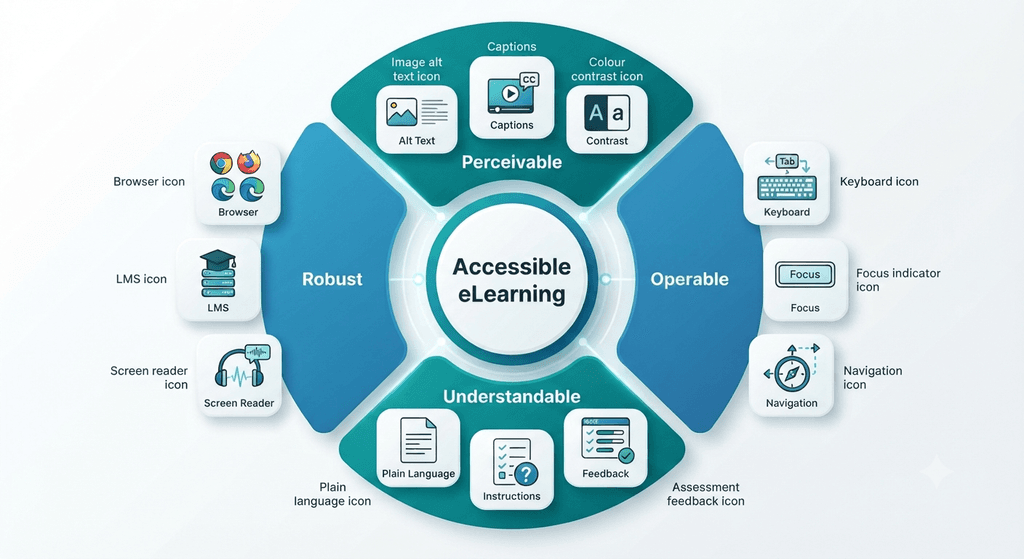
Those four principles are known by the acronym POUR, and they’re the most useful mental model for an L&D team to carry into every review.
Perceivable
Learners need to be able to perceive the information you’re presenting, regardless of which senses they can rely on. In eLearning terms, this covers text alternatives for images, captions for video, sufficient colour contrast, and visual structure that doesn’t depend on sight alone.
Operable
Learners need to be able to operate the course interface. This covers keyboard access to every interaction, a visible indicator of where focus currently is, controls that behave predictably, and avoiding interactions with problematic time limits.
Understandable
Learners need to understand both the content and how the interface works. This covers clear instructions, predictable navigation patterns, plain language, and error feedback that actually tells the learner what went wrong and what to do next.
Robust
The course needs to work reliably across browsers, devices, LMS players and assistive technologies — now, and as those technologies change. A course that only behaves correctly in one specific browser with one specific screen reader isn’t robust, even if it happens to work for the person who tested it.
What Do WCAG A, AA and AAA Mean?
WCAG defines three conformance levels, and they’re cumulative — to meet AA, content must also meet every Level A criterion. The full list of criteria at each level is published in the W3C’s WCAG quick reference.
| Level | What it means | Practical L&D interpretation |
| A | Minimum requirements | The most fundamental accessibility barriers are addressed. Below this level, some learners may simply be unable to complete the course at all. |
| AA | A broader, more comprehensive standard | The level most organisations, regulations and procurement contracts reference in practice for digital learning content. |
| AAA | The highest, most stringent level | Valuable for specific criteria, but the W3C itself notes it isn’t achievable for all content types, so it isn’t generally recommended as a blanket target. |
For most organisations building serious digital learning programmes, WCAG 2.1 Level AA is the common practical target — it’s what’s typically referenced in accessibility policies, vendor contracts and platform requirements.
That said, this is a statement about common practice, not universal law: specific legal or regulatory obligations depend on your jurisdiction, sector and organisation, and where they apply, required conformance levels and versions can vary. If accessibility compliance carries legal weight for your organisation, that’s a question for legal counsel with current, jurisdiction-specific advice.
How to Make eLearning Accessible: 10 Practical Steps
This is the practical core of the guide. Each step below covers a category of decisions an L&D team makes across the life of a course — not a list of things a developer fixes the week before launch.
1. Make eLearning Images Accessible
Every image in a course needs a decision, not a default.
- Meaningful images (screenshots, diagrams, photos that carry information) need alt text describing their purpose or information, not a literal visual description of every element.
- Decorative images (background textures, purely stylistic flourishes) should be marked so assistive technology skips over them — they add nothing for a screen reader user to process.
- Charts, graphs and infographics need the underlying data or takeaway made available in text, not just implied by colour and shape.
- Text embedded inside images should be avoided where possible, since it can’t be resized, searched, or read aloud accurately.
Bad: alt=”image”
Better: alt=”Bar chart showing course completion increasing from 62% to 81% after the revised training”
The goal is communicating what the image means to the course, not mechanically narrating every visual detail.
2. Make eLearning Video and Audio Accessible
These three things are often used interchangeably. They’re not the same, and a course needs to think about each separately:
- Captions are synchronised, on-screen text for video, covering both dialogue and important non-speech sound (like a phone ringing during a customer-service scenario).
- Transcripts are a full text version of the audio or video content, useful for learners who prefer to read, search, or revisit content, and essential for audio-only material like podcasts.
- Audio descriptions narrate important visual information that isn’t conveyed in the dialogue — necessary when a video shows something on screen (a process, a demonstration, a gesture) that a viewer who can’t see it would otherwise miss entirely.
A course also needs accessible media controls (playable, pausable and seekable by keyboard) and should never rely on audio or video alone to convey information essential to completing the course.
3. Make eLearning Navigation Keyboard Accessible
This deserves the most attention of any step, because keyboard access is one of the areas where eLearning commonly falls down.
A learner should be able to use every essential piece of course functionality without a mouse. That means:
- Tabbing through controls in a logical, predictable order
- Activating buttons and controls with Enter or Space where appropriate
- A clearly visible focus indicator at all times, so the learner can always see where they are
- No keyboard traps — places where focus gets stuck and the learner can’t tab back out
The single best practical test an L&D team can run themselves:
Unplug the mouse. Can you complete the course?
If the answer is no, that’s not a minor polish item — it’s a barrier that stops someone from finishing the training.
4. Use Colour Accessibly
Colour is a great reinforcement signal and a terrible sole signal. Anyone with colour vision deficiency, or anyone using a low-contrast or grayscale display, needs another way to get the same information.
This applies to:
- Sufficient contrast between text and background
- Links being distinguishable by more than colour alone (underline, icon, weight)
- Charts using patterns or labels in addition to colour
- Assessment feedback never relying only on green/red
Bad: “Correct answers are shown in green; incorrect answers are shown in red.”
Better: “Correct — ✓” / “Incorrect — Try again.” — with colour used as reinforcement, not the only signal.
5. Make eLearning Text Accessible and Readable
Good text accessibility is mostly about structure and flexibility rather than arbitrary rules:
- Readable typography with adequate spacing and line length
- A predictable heading hierarchy
- Text that reflows sensibly when a learner zooms in or increases text size, rather than clipping or overlapping
- Avoiding text baked into images, for the same reasons noted above
Resist the temptation to prescribe a specific “best” font size as a universal rule — the more useful design goal is that text remains legible and functional across the zoom levels and display settings real learners actually use.
6. Structure Content for Screen Readers
Visual appearance and semantic structure are not the same thing. A heading that looks like a heading — bold, larger, centred — but isn’t marked up as a heading in the underlying content will look right to a sighted learner and be invisible as structure to a screen reader.
This step is about the underlying structure a screen reader actually announces:
- Semantic headings that create a real, navigable hierarchy
- Link text that describes its destination (“Download the TNA template,” not “click here”)
- Real lists, not paragraphs formatted to look like lists
- Properly associated labels on form fields and controls
- A reading order that matches the logical order a sighted learner would follow
7. Make eLearning Interactions Accessible
This is one of the highest-value steps for instructional designers, because eLearning is full of interaction patterns that are easy to build inaccessibly by default: drag-and-drop, click-to-reveal, tabs, accordions, sliders, hotspots, branching scenarios, simulations, timed interactions.
For every interaction you design or evaluate, ask two questions:
- Can a learner operate this without a mouse?
- Can a screen reader communicate what’s happening — what the control is, what state it’s in, and what changed?
This doesn’t mean every rich interaction has to be stripped out. It means the goal is an equivalent accessible way to complete the same interaction, not the removal of interactivity from your courses.
8. Make eLearning Assessments Accessible
Assessments need everything already covered — accessible controls, labels, keyboard navigation, clear instructions, non-colour-dependent feedback — plus one distinction that’s easy to miss:
An assessment can be technically accessible while still testing an unnecessary physical or sensory ability.
If the learning objective is product knowledge, requiring a learner to drag an object with pixel-precise mouse control introduces a barrier that has nothing to do with whether they know the product. The fix usually isn’t “remove drag-and-drop” — it’s asking whether the interaction type matches what you’re actually trying to measure.
Also worth building in from the start: sufficient time to respond, clear error messages when an answer is wrong, and an accessible way to review answers after submission.
9. Use Clear Instructions and Language
Accessibility isn’t only technical. Plain language, consistent terminology, predictable navigation and clearly explained abbreviations reduce cognitive load for every learner, and they’re often the difference between a course that’s technically navigable and one a learner can actually get through without frustration.
This is where accessibility and good instructional design overlap directly — clear instructions aren’t a “nice to have” layered on top of the course; they’re part of designing it well in the first place.
10. Avoid Unnecessary Time-Based Barriers
Timed assessments, auto-advancing slides, session timeouts and flashing or fast-moving content can all create barriers for learners who need more time to read, process or interact.
This doesn’t mean every timed activity is automatically a problem — some assessments legitimately need a time constraint. It means time limits deserve deliberate consideration during design, not a default setting left unexamined, and that appropriate exceptions or extensions may need to be built in depending on the context.
eLearning Accessibility by Layer
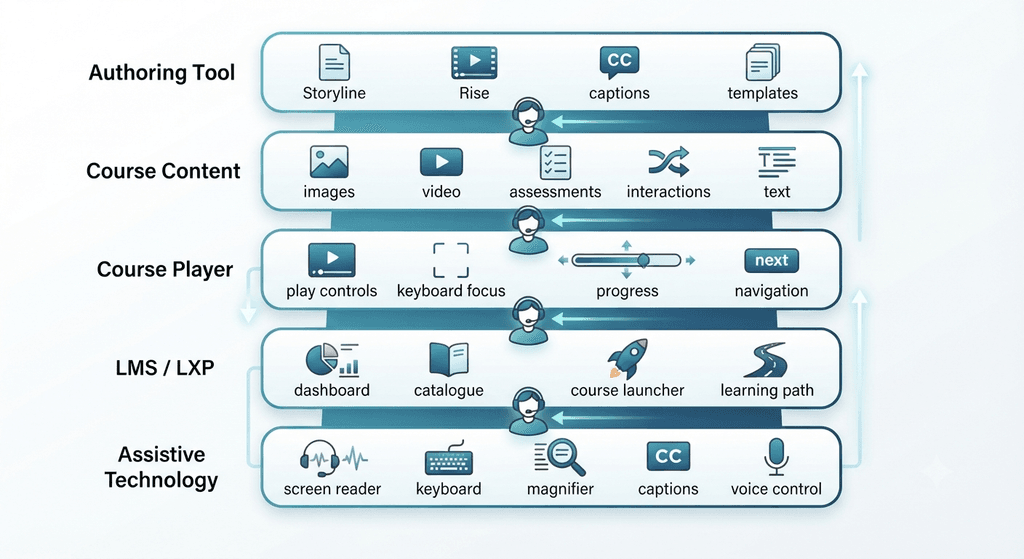
Accessibility problems often get diagnosed at the wrong layer — a “broken” course is sometimes actually a broken player or an inaccessible LMS shell around a perfectly good course. It helps to think of accessibility as something that has to hold at every layer a learner passes through:
| Layer | What needs to be checked |
| Authoring tool | How accessibly the tool lets you create and publish content — alt-text fields, caption support, keyboard-accessible templates |
| Course | The actual content, structure, interactions and assessments inside the package |
| Player | The controls wrapped around the course itself — play/pause, navigation buttons, progress indicators |
| LMS | The platform navigation and delivery shell the learner uses to find and launch the course |
| Assistive technology | The real end-to-end experience with a screen reader, magnifier or alternative input device |
This is also why delivery format is a separate question from accessibility: whether a course is packaged as SCORM, tracked with xAPI, or built around cmi5, accessibility depends on how the content and player are built, not on which tracking standard sits underneath it. A course can be fully accessible or fully inaccessible regardless of whether it reports to a Learning Record Store via xAPI or launches as a SCORM package.
eLearning Accessibility Checklist
Use this as a working checklist during design, build and QA — not as a substitute for a full accessibility audit, but as the day-to-day list that keeps a team honest at every stage.
Checking every box in this checklist is a strong sign your course is in good shape. It is not, on its own, proof of formal WCAG conformance — that requires testing against the specific success criteria that apply to your content.
How to Test an eLearning Course for Accessibility
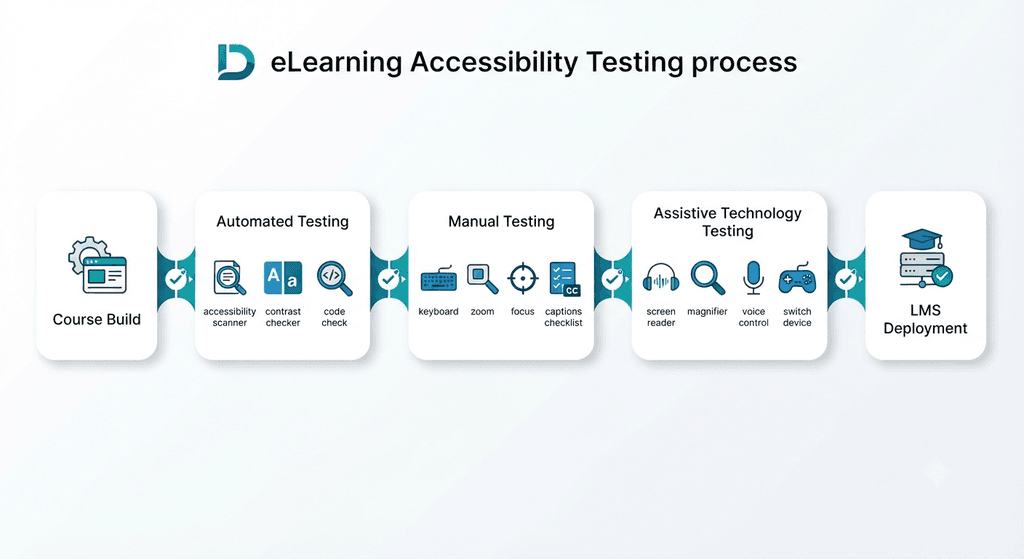
Testing works in three layers, and each catches different problems.
Automated testing. Automated scanners are genuinely useful for catching contrast issues, missing text alternatives, structural problems, and certain form or control errors quickly and consistently. But automated tools can only check what’s mechanically detectable — they cannot tell you whether your alt text is actually meaningful, whether your reading order makes sense, or whether an interaction is genuinely usable. Automated tools cannot find every accessibility problem, and passing a scan is not the same as passing an audit.
Manual testing. This is where a human actually works through the course: keyboard navigation, focus behaviour, zoom and reflow, reading order, how interactions behave, whether captions are accurate, and whether instructions are actually clear.
Assistive technology testing. Where appropriate, test with real screen readers, magnification tools and alternative input methods. Be careful not to treat one screen reader/browser combination as representative of every user — behaviour can differ meaningfully between combinations, and a course that works well with one pairing may not work identically with another.
eLearning Accessibility Testing Tools
You don’t need a large toolkit — you need one or two tools per category, used consistently:
- Automated checkers scan rendered content for contrast, missing alt text, and structural issues. They catch a real but limited slice of problems and should be one input, not the final word.
- Colour contrast checkers verify text/background combinations against WCAG’s contrast thresholds — useful during design, before anything is built.
- Screen readers (commonly NVDA or JAWS on Windows, VoiceOver on Mac/iOS, TalkBack on Android) reveal how your course actually sounds and behaves for a screen reader user — no automated tool substitutes for this.
- Browser zoom and reflow testing is just your existing browser at 200%+ zoom — no special tool required, just a deliberate check.
The point isn’t to build an elaborate testing stack. It’s to make sure each layer above — automated, manual and assistive technology — is actually covered by something, rather than assuming one tool covers all three. And a pass with one specific screen reader and browser combination confirms that combination works — it isn’t evidence the course works everywhere; different pairings can behave differently, which is why this stays one input into a review rather than a final verdict.
The 10-Minute Accessibility Smoke Test
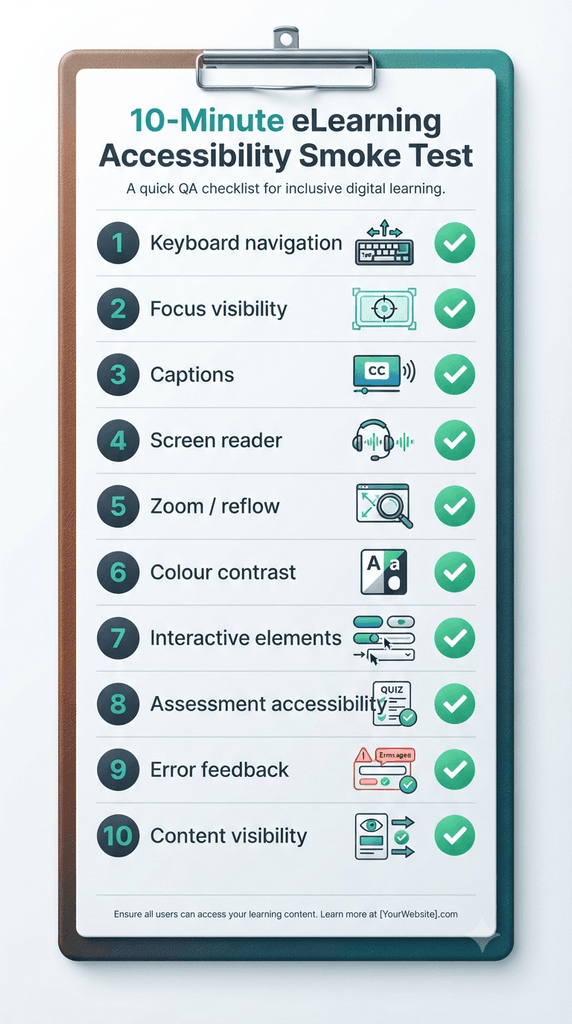
Before a full audit, or for teams without dedicated accessibility resources, this quick pass surfaces the most common and most disruptive problems fast:
- Complete the course using only the keyboard.
- Check whether focus is always visible.
- Turn on captions and watch the video with sound off.
- Navigate a section with a screen reader running.
- Zoom or enlarge the content significantly.
- Look for anywhere colour is the only signal being used.
- Attempt every major interaction without touching the mouse.
- Complete an assessment start to finish.
- Deliberately trigger an error and read the feedback.
- Check whether any important information disappears or becomes unusable at any point above.
This isn’t a substitute for a formal WCAG audit. It’s an early-warning system for the barriers that are most likely to stop a learner cold — and it’s something any L&D team member can run in a coffee break, without specialist tools.
Can eLearning Authoring Tools Create Accessible Courses?
Not automatically. Authoring-tool accessibility features — keyboard-accessible players, focus management, semantic output, alt-text fields, caption support, built-in accessibility settings — can make it easier to build an accessible course. They don’t guarantee the final output is accessible, because a lot of the work still depends on how the course is actually built inside the tool: whether alt text was written meaningfully, whether custom interactions were built with keyboard access in mind, whether the reading order was checked.
Choosing the right tool matters, but it’s one input among several. If you’re evaluating options, our guide on how to choose eLearning authoring tools covers the broader decision framework, including where accessibility fits alongside other requirements.
What About LMS Accessibility?
Course accessibility and LMS accessibility are two separate things, and both need to be evaluated:
- The course — the actual learning content, whether it’s a SCORM package, an xAPI-tracked experience, or embedded video.
- The platform — the LMS or player the learner actually uses to reach that content: the navigation menu, the course launcher, the video player chrome, the assessment interface.
A beautifully accessible SCORM package delivered inside an inaccessible LMS still produces an inaccessible experience for the learner — they may never get past the platform’s own navigation to reach your carefully built course. This is a critical point for L&D buyers evaluating an LMS or a learning experience platform (LXP): platform-level accessibility deserves its own line of questioning, separate from course-content accessibility. Our guide on how to choose the right LMS is a useful starting point for that broader evaluation.
Who Is Responsible for eLearning Accessibility?
Treating accessibility as “a developer thing” is one of the most common reasons it gets missed. In practice, responsibility is distributed:
| Role | Responsibility |
| L&D leader | Setting accessibility requirements and governance for programmes and vendors |
| Instructional designer | Designing accessible interactions, assessments and content structure from the start |
| eLearning developer | Building accessible output — keyboard support, semantic structure, correct focus behaviour |
| Subject matter expert | Clear language and terminology in the source content |
| QA / reviewer | Running the checklist and smoke test before sign-off |
| LMS administrator | Platform-level navigation and delivery accessibility |
| Vendor / authoring tool provider | Accessible tooling, players and documented accessibility features |
No single role can guarantee an accessible course on their own — which is exactly why accessibility has to be checked at every stage of production, not assigned to one person at the end.
Accessibility Is Not the Same as Usability
Good accessibility work often improves usability for everyone — captions help learners in noisy open-plan offices, transcripts make content searchable, clear navigation reduces friction for every user, and readable content lowers cognitive load across the board.
That overlap is real, but it’s worth not collapsing accessibility into a generic “good UX” story. Accessibility addresses specific, identifiable barriers for specific user needs — a screen reader user, a keyboard-only user, a learner with low vision. Treating it as simply a subset of good design risks losing that specificity, and with it, the rigor that actually catches barriers before launch.
Common eLearning Accessibility Mistakes
- Adding alt text at the very end, as a final QA pass rather than during content creation — which is exactly why it so often reads as an afterthought.
- Assuming captions solve accessibility on their own, when video accessibility also depends on transcripts and, where relevant, audio description.
- Testing only with an automated checker, which catches a real but limited slice of issues.
- Making a drag-and-drop interaction the only way to answer a question, with no accessible alternative path.
- Using colour as the only indicator of correctness, status or importance.
- Assuming an accessible authoring tool guarantees an accessible course — the tool is necessary, not sufficient.
- Testing only the course and ignoring the LMS or player it will actually be delivered through.
- Treating accessibility as a developer-only responsibility, when the biggest barriers are usually introduced far earlier, during instructional design.
When Should Accessibility Be Checked?
Accessibility is cheapest to fix at the stage furthest from launch, and most expensive the closer it gets to release:
Instructional design → Storyboard → Authoring → Internal QA → Accessibility testing → User/assistive-technology testing → LMS deployment → Post-launch review
This is the same production line covered in our Corporate eLearning Playbook — accessibility isn’t a separate track running alongside course development, it’s a set of checks built into the stages you’re already running. The same applies when converting classroom training to eLearning: accessibility needs to be considered during the conversion itself, not added afterward as a patch.
The cheapest accessibility issue to fix is the one you prevent during design — deciding not to make a critical interaction mouse-only in the first place costs nothing. Rebuilding that same interaction after it’s fully authored, animated and QA’d costs real time and budget.
What Should L&D Leaders Ask Vendors and Developers?
“WCAG compliant” is not, on its own, a sufficient answer to any of these questions. Ask for specifics, and ask to see it:
- Which WCAG version and conformance level does the product actually support?
- Which accessibility features are native, and which require custom development?
- Can every interaction be completed by keyboard alone?
- How are captions handled — built in, or an add-on requiring extra work?
- How does the player behave with a screen reader?
- Can accessible alternatives be provided for complex or custom interactions?
- What accessibility testing has actually been performed, and by whom?
- Can you provide an accessibility conformance report or VPAT where applicable?
- What happens to accessibility once content is published through our specific LMS?
If a vendor’s documentation (an accessibility statement, a VPAT/ACR) claims conformance, treat it as a useful starting point, not a substitute for testing your own implementation of their tool. Documentation describes the tool’s potential; your testing confirms what you actually built with it.
Conclusion
Accessible eLearning isn’t something you add to a course after it’s designed — it’s a design requirement you carry from instructional design through authoring, media, interaction design, assessment and LMS delivery, verified with real testing rather than assumed from a vendor’s claim of “WCAG compliant.”
The practical framework is simple to state and worth repeating on every project:
Design it accessibly → Build it accessibly → Test it → Validate it with assistive technology → Monitor it after launch.
Build the habit of running that sequence on every course, and most of the barriers covered in this guide get caught long before launch — which is exactly where they’re cheapest to fix.
Frequently Asked Questions
What is accessible eLearning?
Online learning designed so people with different disabilities — including those using screen readers, keyboard navigation or screen magnification — can perceive, navigate, understand and interact with the course.
What is WCAG 2.1?
The Web Content Accessibility Guidelines version 2.1, a W3C standard published in 2018 that organises accessibility into four principles (Perceivable, Operable, Understandable, Robust), with testable success criteria grouped into three conformance levels: A, AA and AAA.
What WCAG level should eLearning target?
Level AA is the common practical target for most organisations’ digital learning content. Whether a specific legal or contractual obligation applies — and at which level or version — depends on your jurisdiction, sector and organisation, so treat this as best-practice guidance rather than a universal legal requirement.
How do I make an online course accessible?
By addressing accessibility across every stage of production — instructional design, authoring, media, interactions, assessments and LMS delivery — rather than treating it as a final QA step. The checklist and step-by-step breakdown above are practical starting points.
Is alt text enough to make eLearning accessible?
No. Alt text addresses one part of one principle (Perceivable). Keyboard access, colour independence, screen-reader structure, accessible interactions and clear language all need separate attention.
How do you test an eLearning course for accessibility?
Through a combination of automated scanning, manual testing (keyboard, zoom, reading order, interactions) and, where appropriate, testing with real assistive technologies such as screen readers.
Are captions required for eLearning?
Captions are widely considered essential best practice for any video with dialogue or important sound, and they’re frequently a specific requirement in accessibility regulations and standards. Whether a specific legal obligation applies to your content depends on your jurisdiction and sector.
Can screen readers access eLearning?
Yes, when the course is built with proper semantic structure, labelled controls, keyboard operability and a logical reading order. Courses that rely on unlabelled custom interface elements or mouse-only interactions can be difficult or impossible for screen reader users to complete.
Are eLearning authoring tools accessible?
Modern authoring tools generally offer accessibility features, but the accessibility of the final output still depends heavily on how the course is built inside the tool — see the section above.
Can SCORM courses be accessible?
Yes. SCORM is a packaging and tracking standard, not a barrier to accessibility — accessibility depends on how the content inside the package is built, not the SCORM wrapper itself. The same is true for xAPI-tracked courses.
Is WCAG compliance the same as accessibility?
Close, but not identical. WCAG conformance is a testable, standards-based way of demonstrating accessibility, but a course can technically pass specific success criteria and still contain barriers WCAG doesn’t explicitly address for your particular audience — which is why testing with real users and assistive technologies matters alongside standards conformance.
Further Readings
If you’re building out the rest of your eLearning technology stack, a few other Trainercentric guides connect directly to this one. Start with the Corporate eLearning Playbook for the complete design-to-delivery framework this article’s accessibility workflow sits inside.
On the platform and tooling side, our guides on how to choose the right LMS, how to choose eLearning authoring tools, and learning experience platforms (LXPs) all cover ground worth evaluating alongside accessibility.
If you’re rebuilding existing content, see how to convert classroom training to eLearning without losing impact, and for teams working under tight timelines, rapid eLearning development and microlearning design are both worth a look.
On the tracking and technology layer, xAPI explained and SCORM vs xAPI vs cmi5 dig deeper into the delivery-format question raised earlier in this guide. And if AI is part of your course-building process, AI in L&D and the AI prompt library for trainers are good next reads.
References
This guide is built around the following primary, authoritative sources. Where WCAG terminology, dates or conformance details are cited in the article above, they’re drawn from these publications rather than secondary summaries.
- World Wide Web Consortium (W3C). “Web Content Accessibility Guidelines (WCAG) 2.1.” W3C Recommendation, 5 June 2018.
- World Wide Web Consortium (W3C). “WCAG 2 Overview.” Web Accessibility Initiative (WAI). Accessed August 2026.
- World Wide Web Consortium (W3C). “WCAG 2.1 – How to Meet WCAG (Quick Reference).” Web Accessibility Initiative (WAI). Accessed August 2026.
- World Wide Web Consortium (W3C). “Understanding Conformance.” Web Accessibility Initiative (WAI). Accessed August 2026.
- World Wide Web Consortium (W3C). “Web Content Accessibility Guidelines (WCAG) 2.2.” W3C Recommendation, 5 October 2023.
- World Wide Web Consortium (W3C). “What’s New in WCAG 2.2.” Web Accessibility Initiative (WAI). Accessed August 2026.
- Information Technology Industry Council (ITI). “VPAT® (Voluntary Product Accessibility Template®).” Accessed August 2026.
This article discusses accessibility best practice and implementation, not legal advice. Accessibility obligations vary by jurisdiction, sector and organisation — consult qualified legal counsel for guidance specific to your situation.
Author Details

Anupama Mitra is a learning experience designer, writer and facilitator with a deep interest in how people learn, adapt and grow at work. With over a decade of experience in corporate learning and development, she specializes in simplifying complex ideas into practical, actionable insights. Her work focuses on leadership development, behavioral changes, making workplace learning more human and engaging. You can reach out to her at anupama@trainercentric.com